


Capital One Mobile
4.5666.29K Reviews
App Specs
- Version
- 6.55.5
- Updated On
- License
- Free
- Downloads
- 50,000,000+
- Developer
- Capital One Services, LLC
- Categories
- Finance
- Platform
- Android, iOS
Screenshots
 Analysis by AppCompare
Ever had one of those moments when you’re juggling a million tasks, and then you remember you need to pay a bill, but your laptop is nowhere to be found? Well, that’s when Capital One Mobile swoops in like a superhero. Seriously, this app is your financial sidekick, ready to help you manage your money wherever you are.
I find a banking app most useful when it removes a small but annoying obstacle: needing to check an account or deal with a card while I’m away from my computer. Capital One Mobile is a free finance app from Capital One Services, LLC, and its focus is practical account management rather than replacing every tool you might use to plan your finances. If you already bank with Capital One, it can put everyday tasks in reach without making you start from a desktop session.
When a phone is the quickest way in
The strongest reason to try it is straightforward: you want to handle routine Capital One banking from a phone. Paying a bill, checking an account, depositing a check, or responding to a misplaced card are all situations where an app can save a trip or a delay. That convenience matters most when the task is simple and time-sensitive, not when you need a long, careful review of your finances.
For example, imagine you’re away from home and remember that a bill needs attention. Rather than wait until you can open a laptop, you can use the mobile app to handle the payment and then return to what you were doing. The useful outcome is not that banking becomes exciting; it’s that a necessary errand takes less effort. I’d still pause to check the payment details before confirming anything, especially if I were paying a new bill or moving money.
That last step is worth making a habit. A phone makes it easy to act quickly, but the smaller screen can make it easier to skim past a date, amount, or account name. I treat mobile banking as a convenient place to complete familiar tasks, not as a reason to rush through decisions that deserve a second look.
Getting Started with Ease
First things first, downloading Capital One Mobile is a breeze. Whether you’re on Android or iOS, head over to your app store, and with a few taps, you’re all set. The interface is clean, intuitive, and honestly, even your grandma could navigate it without a hitch!
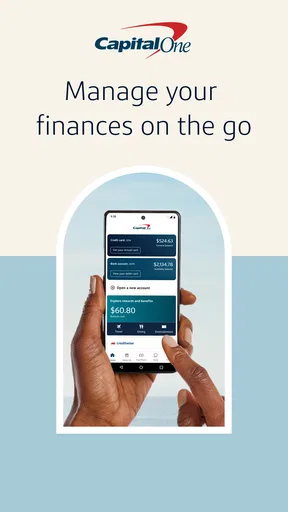
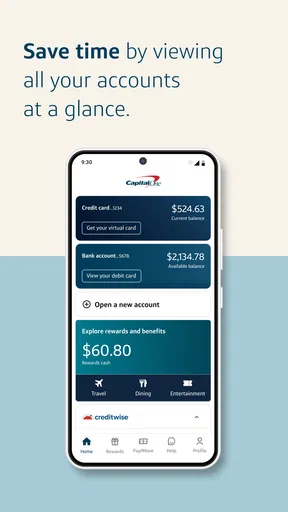
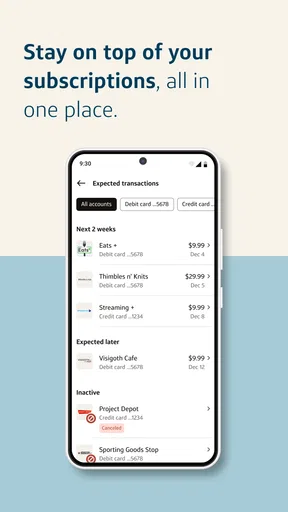
Once you’re logged in, the app gives you a snapshot of your entire financial world. From checking accounts to credit cards, everything’s laid out clearly. It's like having your very own financial dashboard right in your pocket.
Worth Reading Before You Choose

Baby Panda World Brings Quick Play to Modern Phones, but Its Game Library Feels Busy

ESPN’s Live Game View Makes Following Close Games Easier

QuizzLand Review: A Good Fit for Short Trivia Breaks, Not Every Player

Basketball Stars: Multiplayer Is Fast, but Can It Recover When Matches Go Wrong?

WEBTOON Turns Phone Updates Into a Better Reading Routine

Link to Windows Runs on Shared Habits, Not Social Feeds
In practice, that snapshot is most helpful as a starting point: it lets you orient yourself before choosing a specific task. If you’re checking whether a charge appeared or deciding which account to use, a clear overview can reduce the number of screens you need to visit. I wouldn’t treat a dashboard as a substitute for reviewing a detailed statement, though. A quick glance is good for awareness; a careful review is better for catching unfamiliar activity or understanding a pattern.
The app has been available since July 29, 2011, and its current version is 6.36.20. It requires Android 11 or later, is rated Everyone, and has a 4.5 average from around 1.7 million ratings. Those figures suggest a widely used service, but popularity alone doesn’t tell you whether it fits your banking needs. The key question is whether your Capital One accounts and the tasks you handle most often are a good match for a phone-first workflow.
Features to Love
One of the coolest features is the real-time alerts. Imagine this: you’re about to make a purchase, and boom, you get a notification about a recent transaction. It’s like having a financial guardian angel.
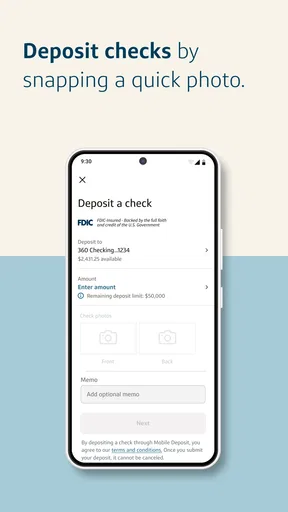
The app also lets you pay bills, transfer money, and even deposit checks just by snapping a photo. No more trips to the bank, folks! Plus, for the budget-conscious, there’s a handy spending tracker. You can categorize your expenses and see exactly where your money is going. It's eye-opening, to say the least.
A useful way to make those tools work together is to build a small routine around them. If a check arrives, you can use the deposit option rather than letting it sit until your next errand; after submitting it, keep track of whether the deposit appears as expected before counting on the money for an immediate payment. That’s a practical handoff: the phone captures the check, but your later account review is what confirms the result for your own planning.
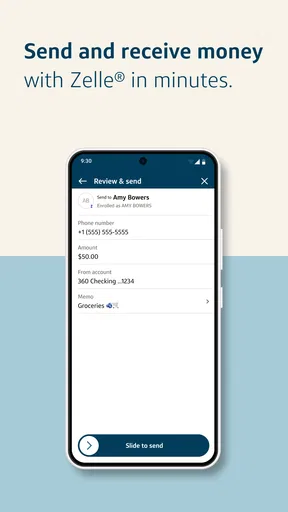
Bill pay and money transfers also solve different problems, so I’d avoid treating them as interchangeable. A bill payment is for settling an obligation, while a transfer moves money between accounts. Before tapping through either flow, I’d verify the destination and amount, then check the account activity afterward. That simple before-and-after habit is especially useful when several accounts or recurring obligations are involved.
Alerts are most valuable when they help you notice something in time to respond. I’d tailor them to the activity I actually want to monitor rather than turning every notification into background noise. When an alert arrives, it is a prompt to open the account and review the transaction—not, by itself, a complete explanation of what happened. That distinction helps keep notifications useful without making them a source of unnecessary worry.
The spending tracker can help you spot habits, but I’d use it as a prompt for questions rather than a strict budget authority. If a category looks unexpectedly high, review the underlying transactions and decide whether they reflect a one-off expense or a pattern worth changing. Categorization can make spending easier to scan; it does not make a financial decision for you.
Security and Peace of Mind
When it comes to handling your money, security is key. And let me tell you, the security features on this app are top-notch. With fingerprint and facial recognition, your account is locked tighter than Fort Knox. You can also customize your alerts, so you’re always in the loop if anything fishy happens.
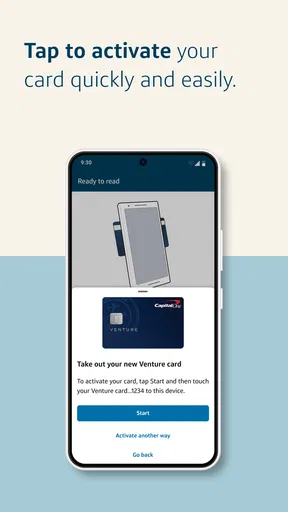
Plus, if you ever misplace your card, you can lock it directly from the app. And when you find it under the couch cushions, just unlock it. Easy peasy.
The card-lock option is a particularly practical example of a phone helping at the moment you need it. If you can’t find your card, locking it while you look can be a sensible first response; if it turns up, you can unlock it rather than treating the card as permanently lost. I’d still take a moment to review recent activity if the card was missing in a public place or you noticed a charge you didn’t recognize. A lock is a useful control, not a substitute for checking what has already happened.
Biometric sign-in can make repeat access more convenient, but I would not confuse convenience with a guarantee that every risk disappears. Keep your phone’s own lock screen protected, avoid sharing access, and take a careful look at account activity when something seems off. These are ordinary habits, but they matter because the app sits close to sensitive financial tasks.
Where the mobile workflow can fall short
Now, don’t get me wrong, Capital One Mobile is fantastic, but like any app, it’s not perfect. Occasionally, there might be a slight lag when loading your transaction history. But honestly, it’s nothing that would make you pull your hair out.
Also, while the app covers a lot, it doesn’t have every single feature of the desktop version. So, if you’re into the nitty-gritty details, you might still find yourself logging in on a computer from time to time.
That division between phone and desktop is an important trade-off. I’d choose the app when I need a quick account check, a routine payment, or a card-control action. If I were comparing lots of transactions, looking for detailed account information, or organizing a more involved financial task, I’d be ready to switch to a computer. The mobile experience is most convincing when the job is clear and bounded; it is less suitable when I need space to study several details at once.
Compared with a bank’s website, the app’s advantage is immediate access to common tasks while you’re out. Compared with a general budgeting app, its strength is that it is tied to Capital One account management rather than being only a place to record spending. Those alternatives may suit someone who wants a broader view across financial providers or a more deliberate planning workspace. If your main goal is to manage Capital One accounts, the dedicated app is the more direct choice; if you want one consolidated picture of finances elsewhere, a broader tool may fit better.
There is also a practical dependency to consider: this is most useful if you have Capital One accounts to manage. Someone who does not bank with Capital One is unlikely to get the same everyday value from installing it just to browse. And if you prefer to handle every financial task on a larger screen, there is little reason to change a routine that already works for you.
Who I’d recommend it to
I’d recommend it to Capital One customers who want a convenient way to check accounts and take care of regular banking tasks without waiting to get to a computer. It is especially well suited to people who value quick access to bill pay, check deposit, account activity, and card controls in one place. The app is free, and its Everyone age rating makes it broadly accessible, though that rating is not a substitute for deciding whether its account tools suit your own needs.
I’d be more cautious about recommending it as someone’s only financial planning tool. The app can help with day-to-day account management, but detailed planning may call for a spreadsheet, a desktop session, or a budgeting service that brings several institutions together. If you already use a method that gives you a clearer view of all your finances, there is no need to abandon it just because a bank app is available.
Capital One Mobile has more than 50 million installs and around 647,000 reviews, alongside its strong average rating. That reach makes it a familiar option for many account holders, but I’d still judge it by whether it handles your own recurring tasks smoothly. Before relying on it for an urgent payment or deposit, get comfortable with the relevant screens during a low-pressure moment. Familiarity is what makes the convenience useful when you’re actually in a hurry.
What to expect from a normal day
Picture a weekday lunch break: you remember a bill, open the app, check the account you intend to use, and complete the payment. Later, you receive an alert about account activity and review it rather than assuming the notification tells the whole story. On the way home, you realize your card is missing, lock it while you search, and unlock it if you find it. Each part is a small task, but together they show the app’s real value: it keeps routine banking actions close at hand and lets you respond without making a separate trip.
The workflow is not entirely automatic. You still need to choose the right account, confirm payment details, keep an eye on the outcome, and decide what an alert means. A mobile app can shorten the path from noticing a task to acting on it, but it cannot remove the need for judgment. That is why I see the best result as greater convenience and awareness, rather than a promise that money management takes care of itself.
For a check deposit, my advice is similar: take care with the capture, submit it when you can focus, and review the account afterward. For spending insights, look for recurring patterns instead of reacting to a single unusual category. And for card security, use the lock when it is appropriate, then follow up by checking activity. These small habits are more useful than trying to use every feature at once.
My final take
All in all, Capital One Mobile is a lifesaver for anyone looking to keep tabs on their finances on the go. It’s user-friendly, secure, and packed with features that make managing your money less of a chore and more of a breeze. So next time you’re stuck in line at the coffee shop, why not check in on your accounts? You might just find a way to save a few bucks—or discover you’ve got enough in your budget for that extra latte!
My recommendation comes with a clear boundary: I’d use it as a practical companion for Capital One banking, not as a replacement for every financial tool or for careful review on a larger screen. If you want quick access to everyday account tasks and are comfortable checking the details before acting, it makes sense to give it a place in your routine. If you need a provider-neutral overview or prefer to manage money away from your phone, another approach may serve you better. For the right user, its best quality is simple: it can turn a banking chore you might otherwise postpone into a task you can handle at the moment it comes to mind.
Pros
- User-friendly interface makes navigation easy.
- Real-time alerts for account activity.
- Customizable dashboard to track spending.
- Secure login with fingerprint and Face ID.
- Integrated credit score monitoring.
Cons
- Occasional connectivity issues reported.
- Limited features for non-Capital One users.
- Some features slow to load at times.
- Notifications can be overwhelming.
- No support for international transactions.
FAQs for Capital One Mobile
What features does the Capital One Mobile app offer?
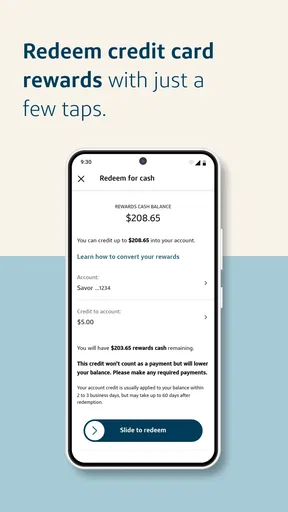
The Capital One Mobile app provides a comprehensive suite of features for managing your finances on-the-go. Users can view account balances, track spending, make payments, and transfer funds. Additionally, the app offers credit monitoring tools, personalized alerts, and the ability to redeem rewards. It also supports mobile check deposits and secure login options such as fingerprint and Face ID.
Is the Capital One Mobile app secure?
Yes, the Capital One Mobile app is designed with robust security measures to protect user information. It includes features like two-factor authentication, encryption of sensitive data, and the ability to lock your card if lost or stolen. Additionally, users can receive real-time fraud alerts and have access to 24/7 account monitoring.
Can I manage multiple accounts with the Capital One Mobile app?
Yes, the app allows users to manage multiple Capital One accounts seamlessly. Whether you have credit cards, bank accounts, or loans, you can view and manage them all from a single interface. The app provides detailed transaction histories and the ability to make payments or transfers between your accounts.
Does the Capital One Mobile app support mobile check deposit?
Yes, the Capital One Mobile app supports mobile check deposit, allowing users to deposit checks using their smartphone's camera. The process is straightforward: simply take a photo of the front and back of the check, enter the amount, and submit. It’s a convenient feature that saves a trip to the bank.
What should I do if I encounter issues with the Capital One Mobile app?
If you experience any issues with the app, you should first try restarting your device or reinstalling the app. For persistent problems, Capital One provides customer support through the app, via phone, or on their website. They also have a comprehensive FAQ and help section to assist with common issues.


